Galaxy AI is a flexible, affordable tool for creating visuals quickly—perfect for content creators, online teachers, and small-business owners who need social images, thumbnails, or branded graphics without a steep learning curve. Below is a practical, step-by-step guide to using Galaxy AI’s image generator effectively, with tips on choosing models, setting aspect ratios, improving prompts, and avoiding common pitfalls when adding text to images.
Quick start: opening the AI image generator
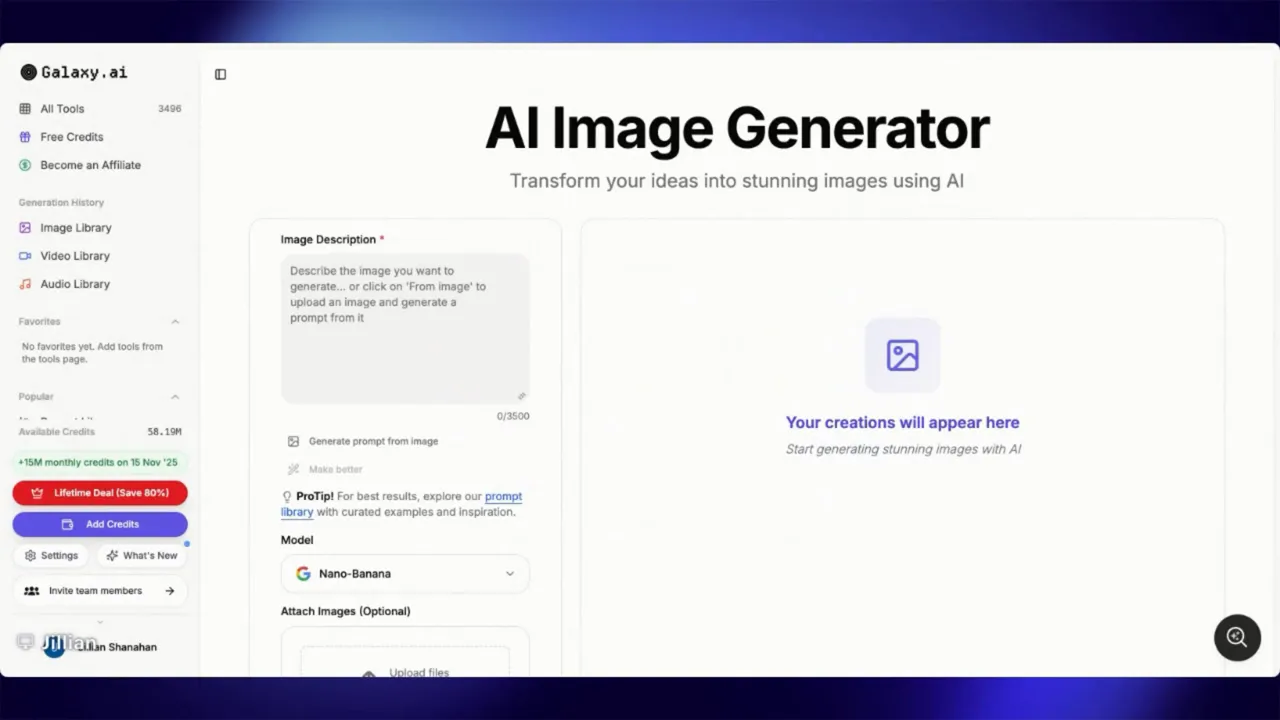
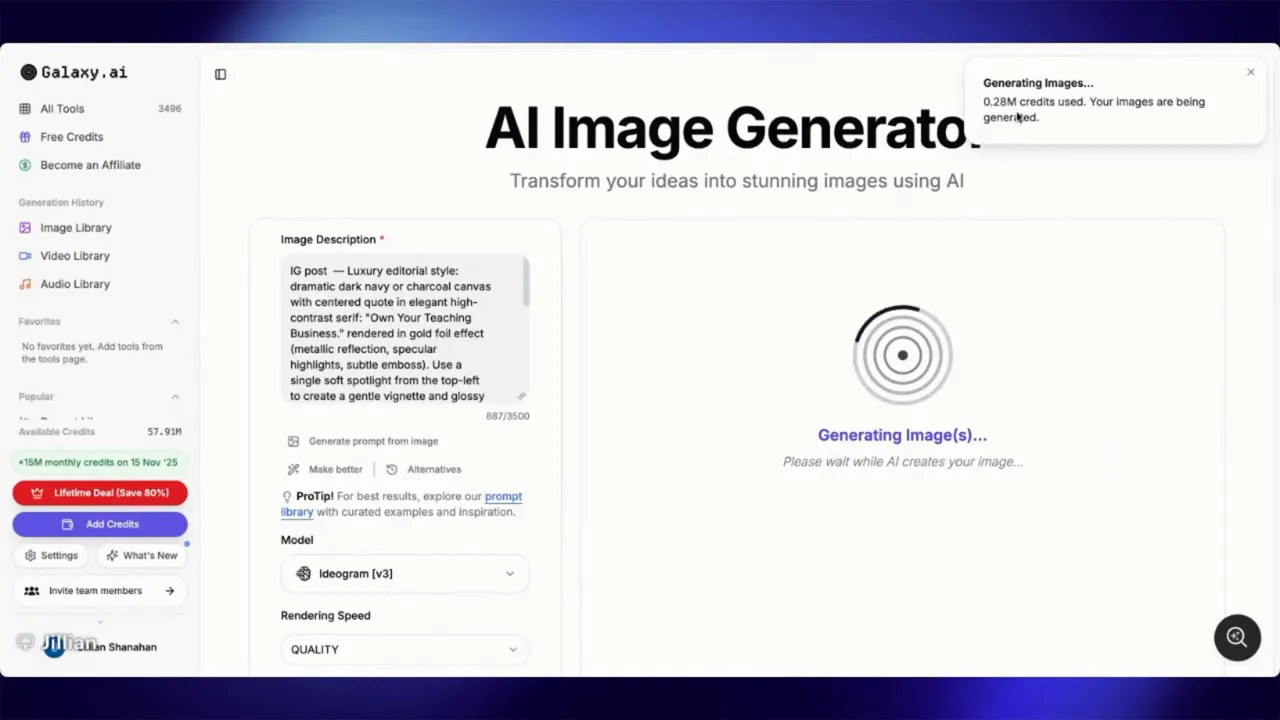
Open the Galaxy AI platform and navigate to the AI tools section. Search for “image” or “photo” and select the AI image generator. The interface lets you enter prompt text, pick a model, choose generation speed and quality, set aspect ratio, and decide how many variations to generate.
Choose the right model for your goal
Not all models are the same. Some cost more credits but produce higher-fidelity images. For images that include readable, clean text, certain models outperform others:
- Ideogram — Excellent for text-heavy images and quotes.
- Wan — Another strong choice when text clarity matters.
- Nano Banana — Very cheap on credits and sometimes good with text; small trade-offs in consistency.
- MidJourney — Expensive in credits and generally poor at rendering text; avoid it when your image needs readable words.
Pick the model that aligns with your priorities. If you value fidelity over speed, choose quality mode rather than fast mode.
Aspect ratio and sizing: think platform-first
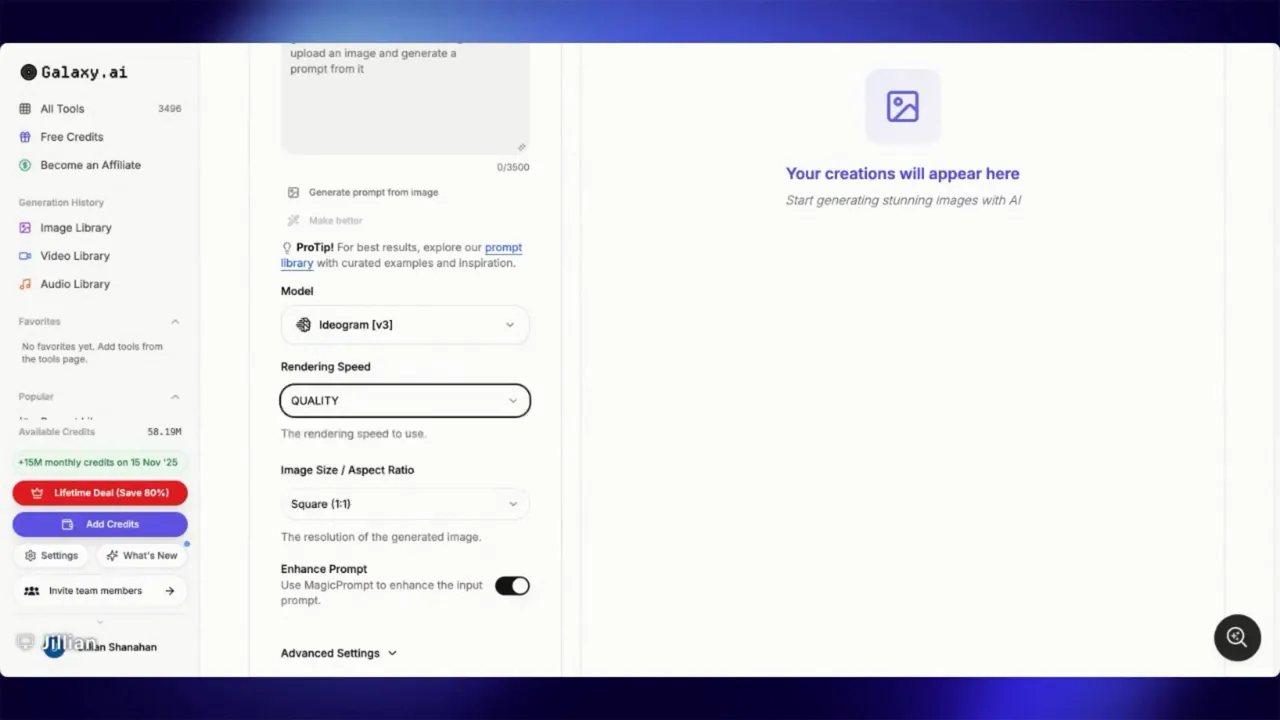
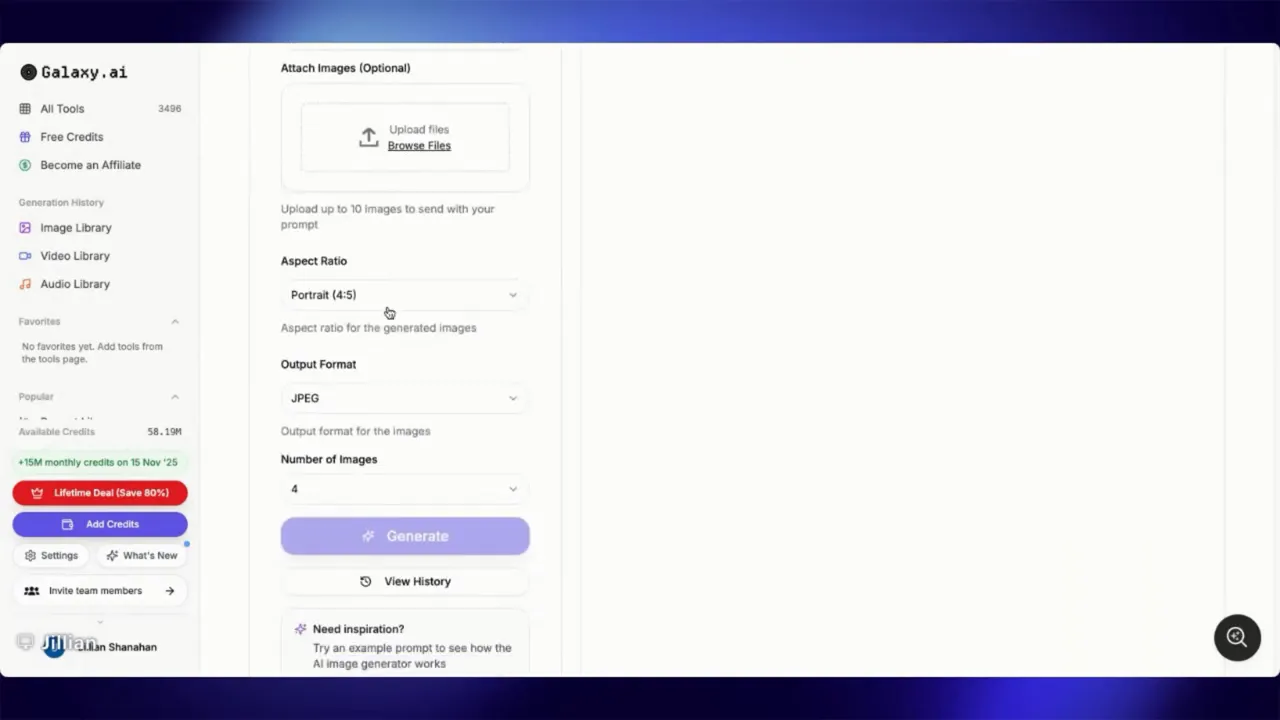
Set the aspect ratio based on where the image will be published:
- 16:9 — YouTube thumbnails and landscape placements
- Square — Generic social posts and feed items
- Portrait — Instagram Portrait or vertical stories
- 4:5 — Instagram feed posts (commonly used)
Some models offer additional preset sizes. If you have custom dimensions, enter them directly. When in doubt, generate multiple sizes or keep an editable source so you can crop for different platforms.
Writing prompts that work
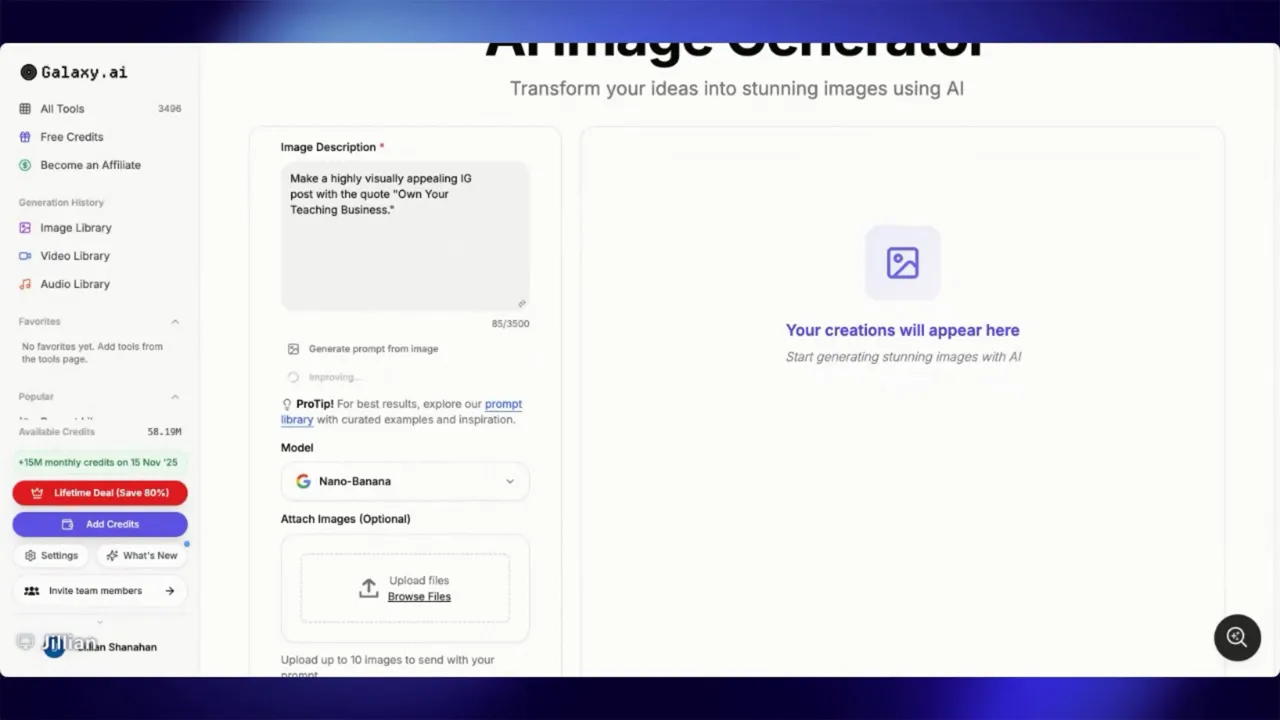
Start with a clear core instruction, then layer in details: style, color, composition, and any textual content you want included. Example prompt structure:
- Primary instruction: “Create a visually appealing Instagram post”
- Subject or message: “with the quote ‘Own your teaching business’”
- Style hints: “dark navy, chalkboard doodles, icons, surrounded text”
- Optional: “spotlight effect, minimal clutter, modern type”
Use the generator’s “make this better” option when available. This helps refine and expand a short prompt into a fuller, more image-ready instruction. Be ready to iterate: tweak the prompt, run again, and compare the variations.
Attach example images when you want a specific look
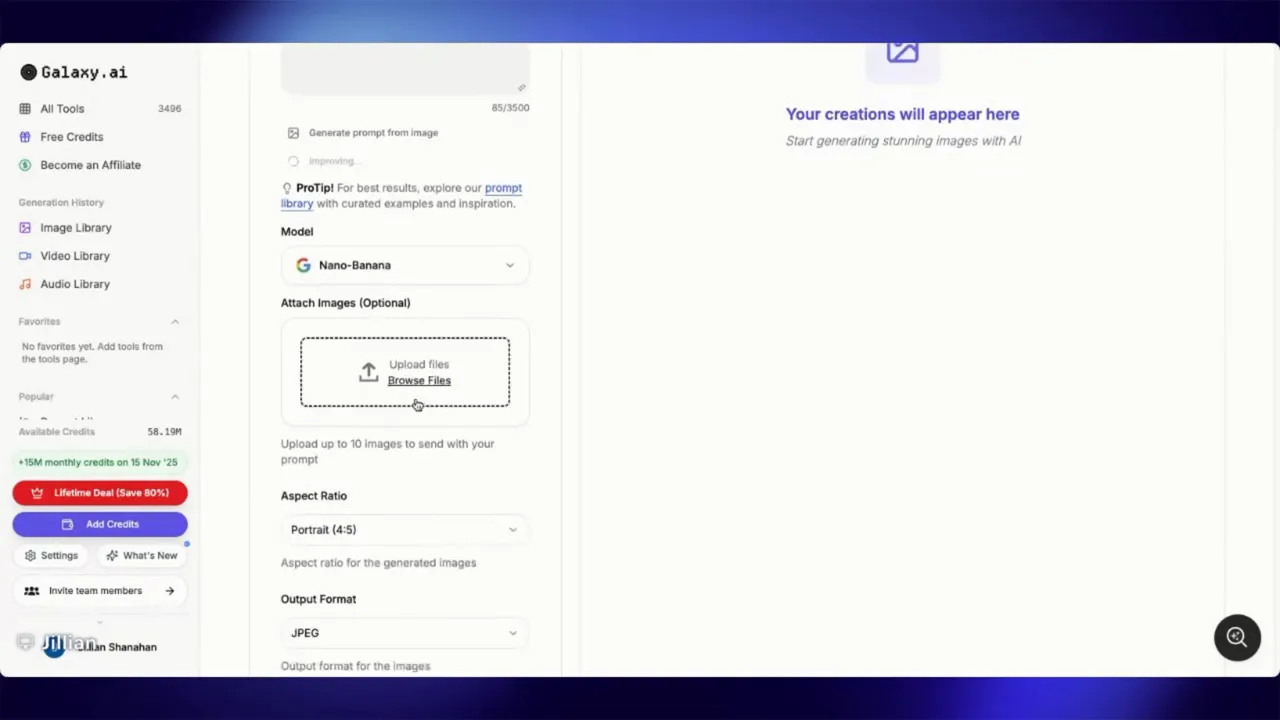
If you have a reference image or brand assets, upload them with your prompt. References guide composition, color palette, or logo placement and help the model match your visual identity more closely.
Generate variations and pick your favorites
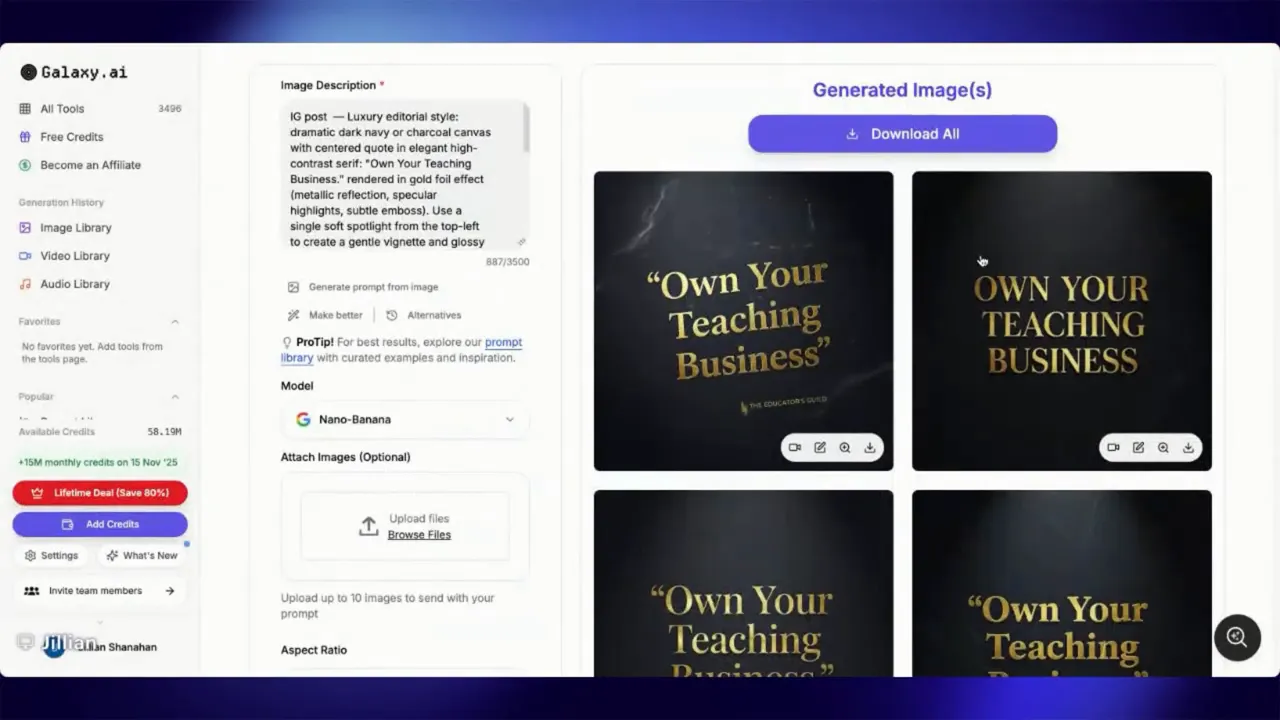
Always generate multiple variations—four is a solid default. Getting several outputs gives options to choose a layout, color treatment, or text placement without repeating the whole process.
Credits and speed: manage usage wisely
Each model and setting consumes credits differently. High-quality model runs cost more. If you plan to use Galaxy AI heavily, explore plans that suit frequent generation—there are monthly credit offers and sometimes lifetime deals. Monitor credit usage when testing new prompts and models so you can balance cost against quality.
Text in images: practical tips
Creating readable text inside generated images is one of the trickier parts:
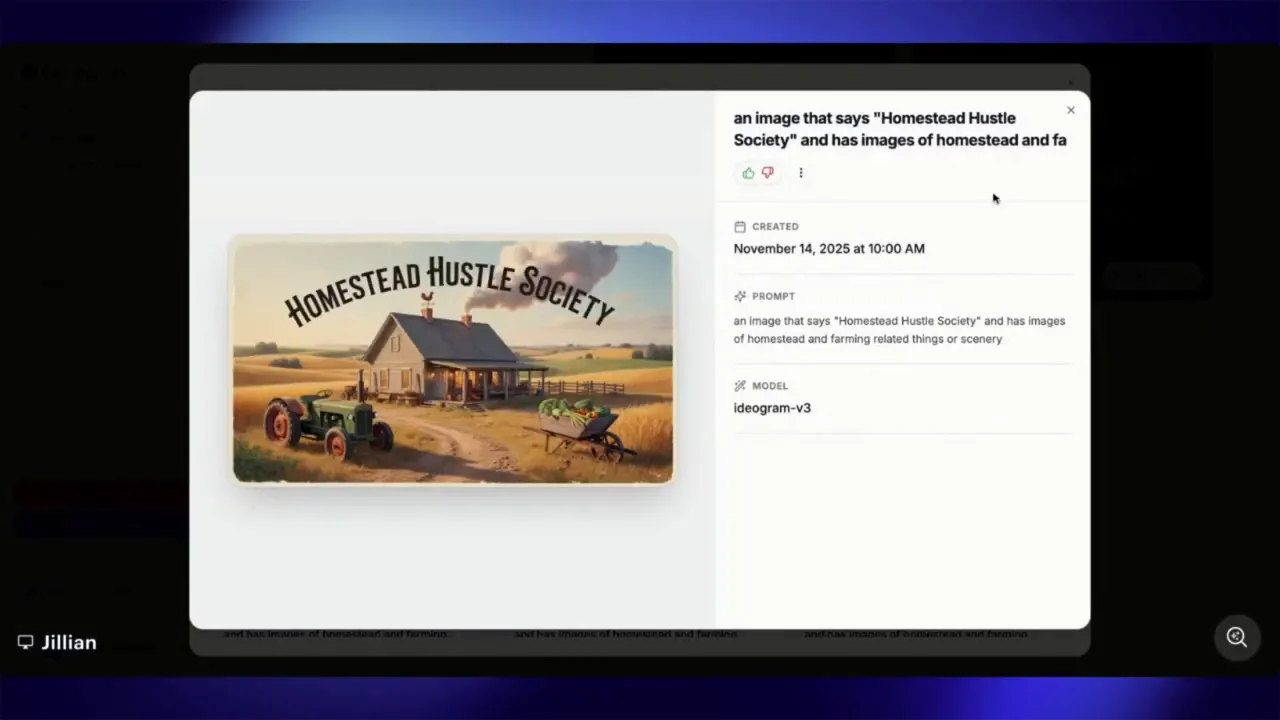
- Use Ideogram or Wan for text-heavy designs—these models render words much more reliably.
- Avoid MidJourney if you need clean, legible text; it often distorts lettering and costs more credits.
- Small text or fine detail may still look off; plan to add precise text later in a graphics editor when necessary.
When asking for a byline or secondary copy, be explicit about its content. If you request “add a byline,” include the exact wording to avoid blank or gibberish text appearing in the output.
Use the history and reuse successful prompts
Save successful prompts and use the generator’s history to review past creations. This speeds up future production and helps you track which models and phrasing produced the best results for your brand or classroom materials.
Examples and creative use cases
Galaxy AI is useful beyond single social posts:
- Quote cards scheduled across platforms
- Branded thumbnails for lessons and courses
- Quick mockups for promotional graphics
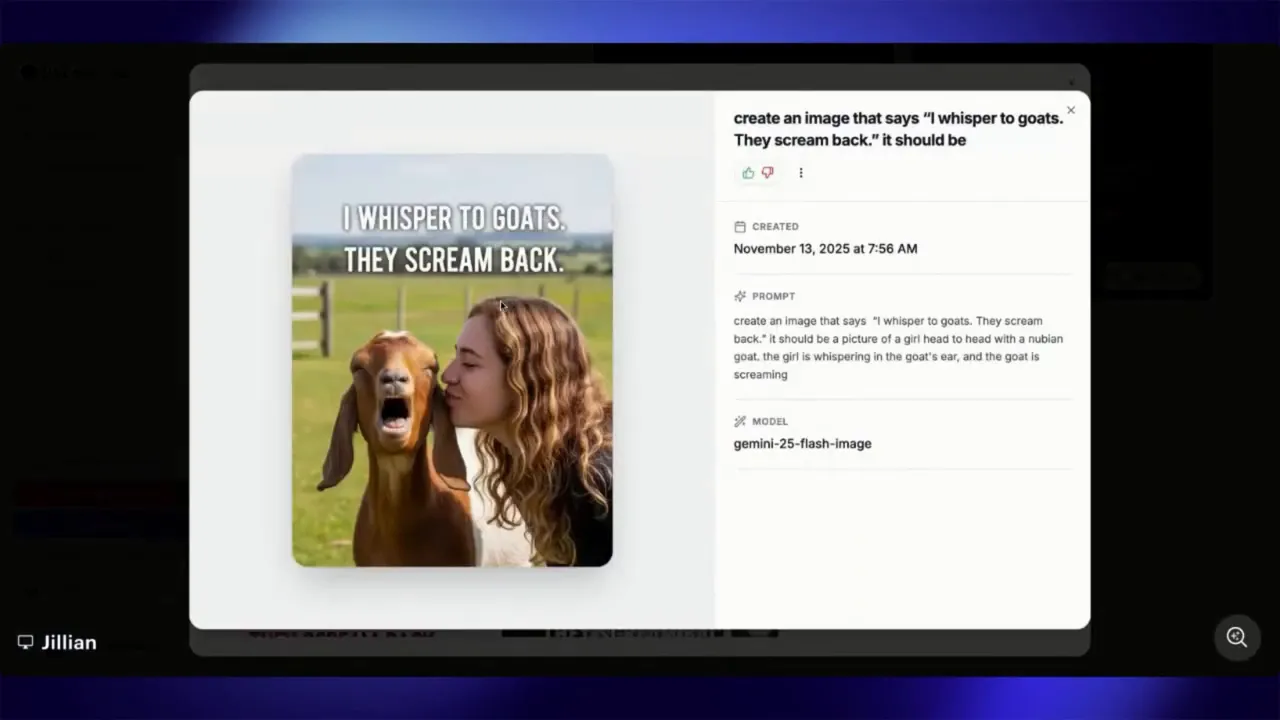
- Fun content, like playful captions or meme-style visuals
Experiment across models. For example, one user created a humorous card—“I whisper to goats they scream back”—with a different model to capture a specific tone. Trying different engines often yields surprising, useful variations.
Practical workflow: a short checklist
- Choose model based on whether image needs readable text.
- Select aspect ratio for the target platform.
- Enter a clear prompt and click “make this better” if available.
- Upload reference images when needed.
- Generate multiple variations and download favorites.
- Tweak text in a graphics editor if final lettering must be exact.
Final tips
Quality over speed usually wins: choose quality mode when the image will represent your brand. Keep a library of successful prompts and reference images to reduce rework. When generating text-heavy content, prefer Ideogram or Juan and be explicit about every line you want included.
Galaxy AI can dramatically speed up content creation, letting creators and educators focus on messaging and scheduling rather than spending hours designing each post. Use thoughtful prompts, choose models intentionally, and iterate until you find the combination that fits your workflow.
Want to learn more?
If you want deeper prompt templates, model comparisons, or sample prompts tailored for teaching and course promotion, note it down and return to this guide when you’re ready to scale your visual production.
Leave a Reply