
Captions make short clips and reels more accessible, more engaging, and more likely to be watched without sound. You can add them quickly and for free using Adobe Express. Below is a simple, practical workflow that covers everything from uploading to styling to sharing.
Why add captions?
- Improve accessibility: Viewers who are deaf or hard of hearing can still follow along.
- Boost engagement: Many people watch on mute—captions keep them connected.
- Better reach: Platforms often favor content that keeps viewers watching.
Quick step-by-step: Add captions in Adobe Express
- Create a free Adobe Express account. Search for Adobe Express and sign up.
- Start from content and upload your clip. Drag and drop your file into the upload area until the screen highlights and accepts it.
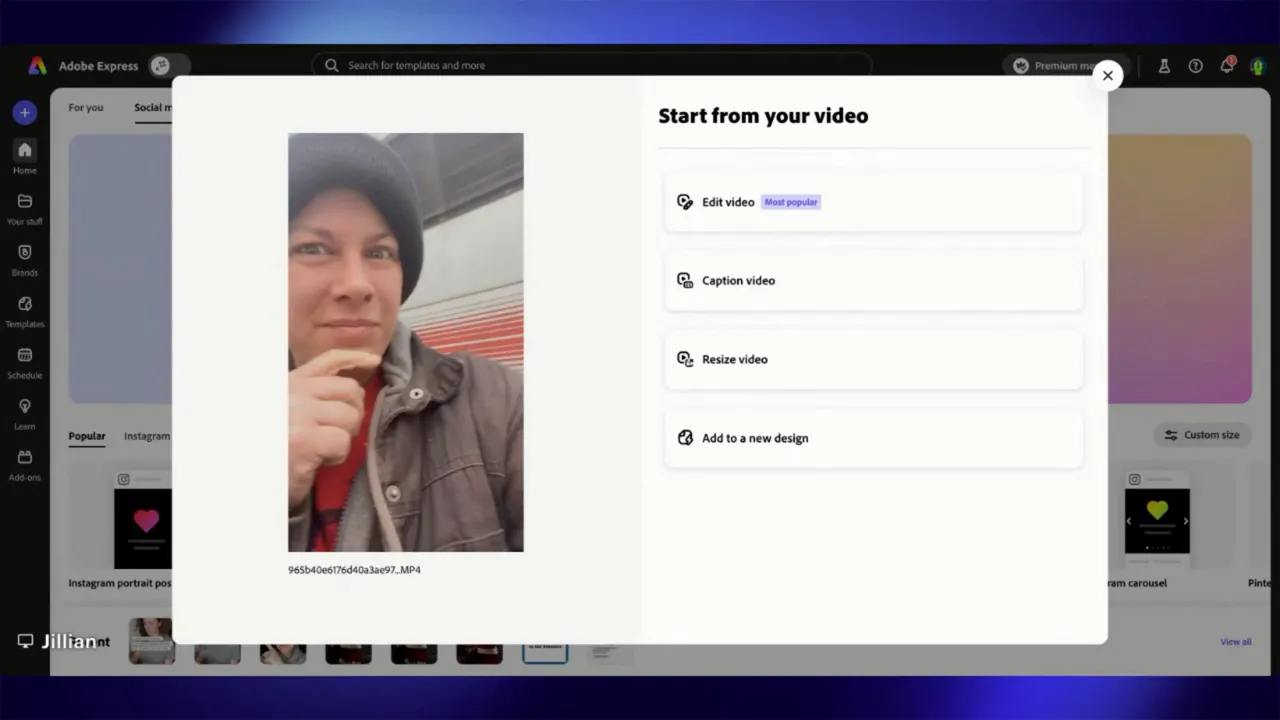
- Choose the Caption option from the popup. After the file uploads you’ll see choices like edit, caption, resize, or add to a new design. Select captioning—captions can’t be added from the regular editor screen.
- Let Adobe Express generate captions automatically. It may take a minute. Note that the very beginning of clips that only contain music may not show captions.
- Review and adjust. Go through the generated text and correct any inaccuracies, timing issues, or punctuation.
- Style the captions. Change the layout, color, and background style to match your video branding.
- Download or open in the editor for extra edits. If you want to add overlays, additional clips, or graphics, choose Open in Editor. Alternatively, you can edit first, export, and then re-upload to the captioning tool.
- Share or schedule directly. Use the Share menu to schedule posts to Instagram, Facebook, TikTok, X, Pinterest, or LinkedIn.
Caption styling: keep it readable
Adobe Express offers several presentation styles. Try a simple boxed caption for complex backgrounds or a ribbon that spans the screen for bold looks. You can also change text color and background opacity to match your palette—red accents work well if your clip already includes red tones.
Practical styling tips
- High contrast: Make sure text contrasts with the video. Light text on dark backgrounds or vice versa reads best.
- Short lines: Break long sentences into shorter chunks so people can read quickly.
- Consistent placement: Keep captions in roughly the same spot across clips so viewers know where to look.
Two useful workflows
- Caption first: Use automatic captions, correct them, then open the clip in the editor to add graphics and finishing touches.
- Edit first: Build your full edit in the editor, export it, then re-upload to the captioning workflow. This can help if the edit changes timing significantly.
Troubleshooting and best practices
- Missing captions at the start: If the first few seconds are music, automated captioning may skip them. Add a short text overlay manually if needed.
- Check accuracy: Automated captions are fast but imperfect. Always proofread and fix misheard words or punctuation.
- Use short, punchy copy: People read quickly—keep captions concise and focused.
- Use captions for emphasis: Pull key phrases or calls to action into captions so they stand out.
“Kids, get in the truck. We’re going to go pick up a horse.”
Where this fits into your content workflow
Adding captions is a small step that pays off in reach and engagement. Use Adobe Express as a free, reliable way to add captions quickly, then export or schedule posts to major platforms. Whether you build the edit first or caption and then polish, incorporating captions will make your short-form content perform better.
Try it out
Sign up for Adobe Express, upload a short clip, and experiment with caption styles and colors. If you keep captions readable and on-brand, they will noticeably improve viewer engagement and accessibility.
Leave a Reply