Creating carousels in Canva is fast, but scheduling and auto-publishing them to Instagram saves even more time. You can publish directly from Canva without downloading files and switching apps. Below is a simple, step-by-step guide to selecting pages, adding captions and hashtags, and publishing or scheduling a carousel straight from Canva.
If you need to see how to set it up, check out this post here
Why auto-publishing carousels from Canva is useful
Auto-publishing keeps your content calendar consistent and removes friction. Instead of saving each slide, opening Instagram, and uploading, you can select the pages in Canva, add your caption and hashtags, and either publish immediately or schedule for later. This works great for multi-slide tutorials, list posts, and visual storytelling that benefits from carousel format.
Step-by-step: Auto-publish an Instagram carousel from Canva
- Prepare your carousel design. Design each carousel slide in order as separate pages inside one Canva project. Make sure text and visuals align across pages so the swipe experience feels seamless.
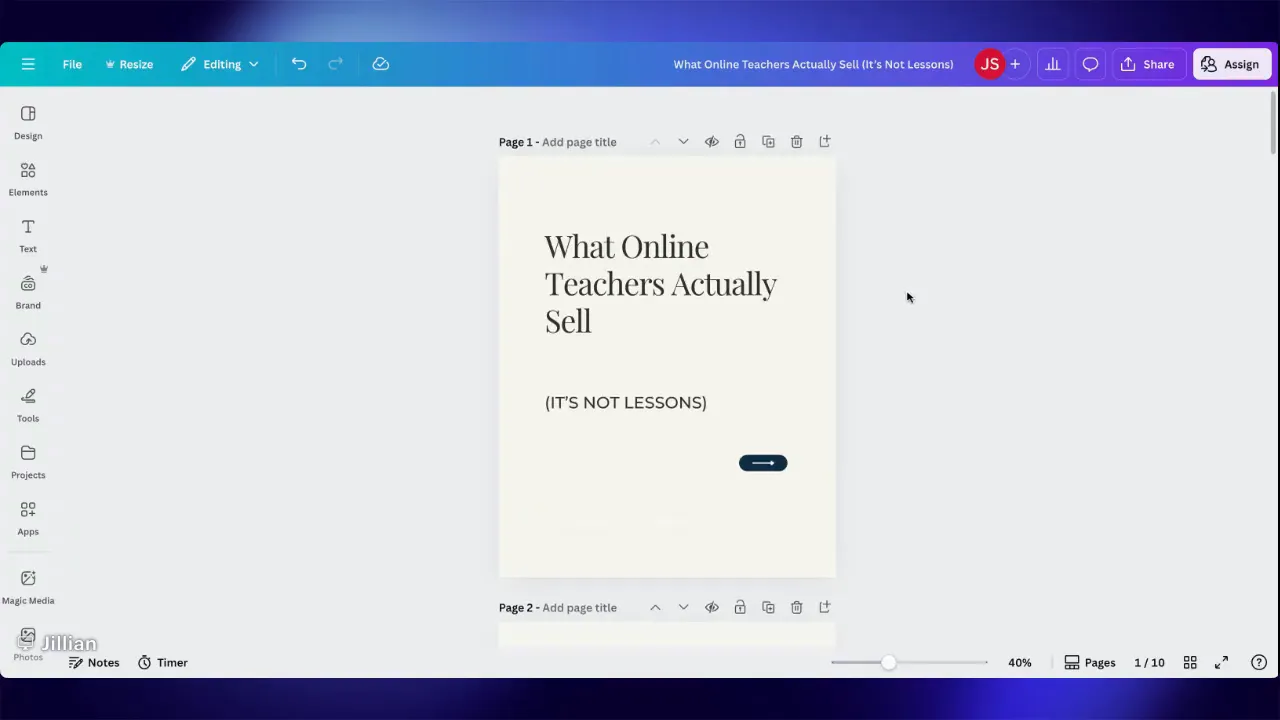
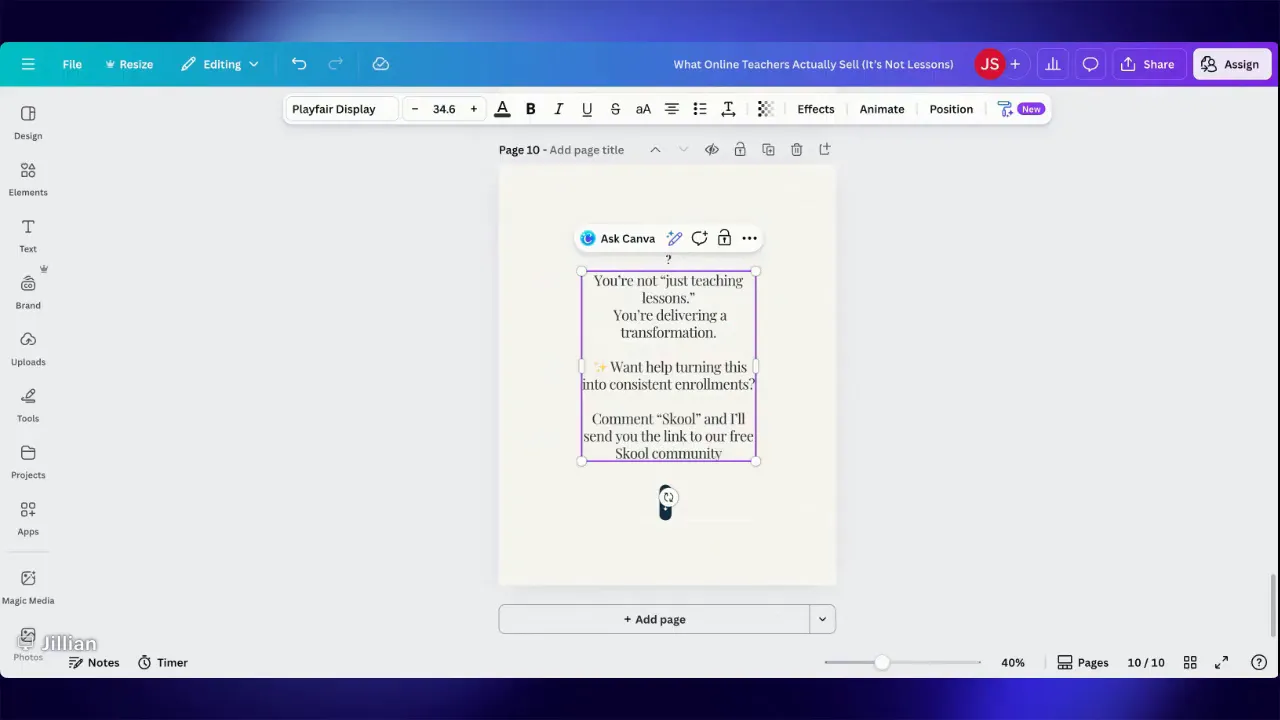
- Edit your CTA copy on the design if needed. Update the call to action visible on one of the slides. For example, use a short prompt that encourages engagement and makes clear what the next step is.
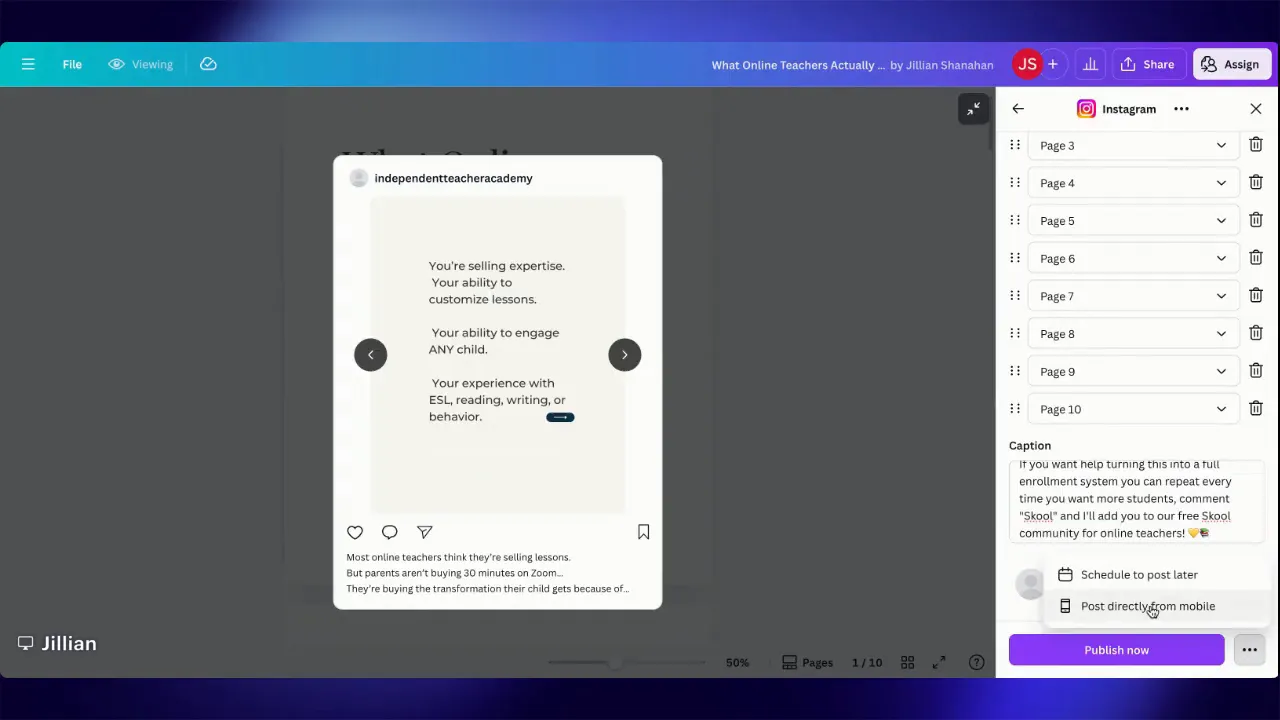
- Open the Share menu and choose Instagram. Click Share, then select Instagram from the list of platforms. Canva will show different format options including carousels and, in some accounts, reels.
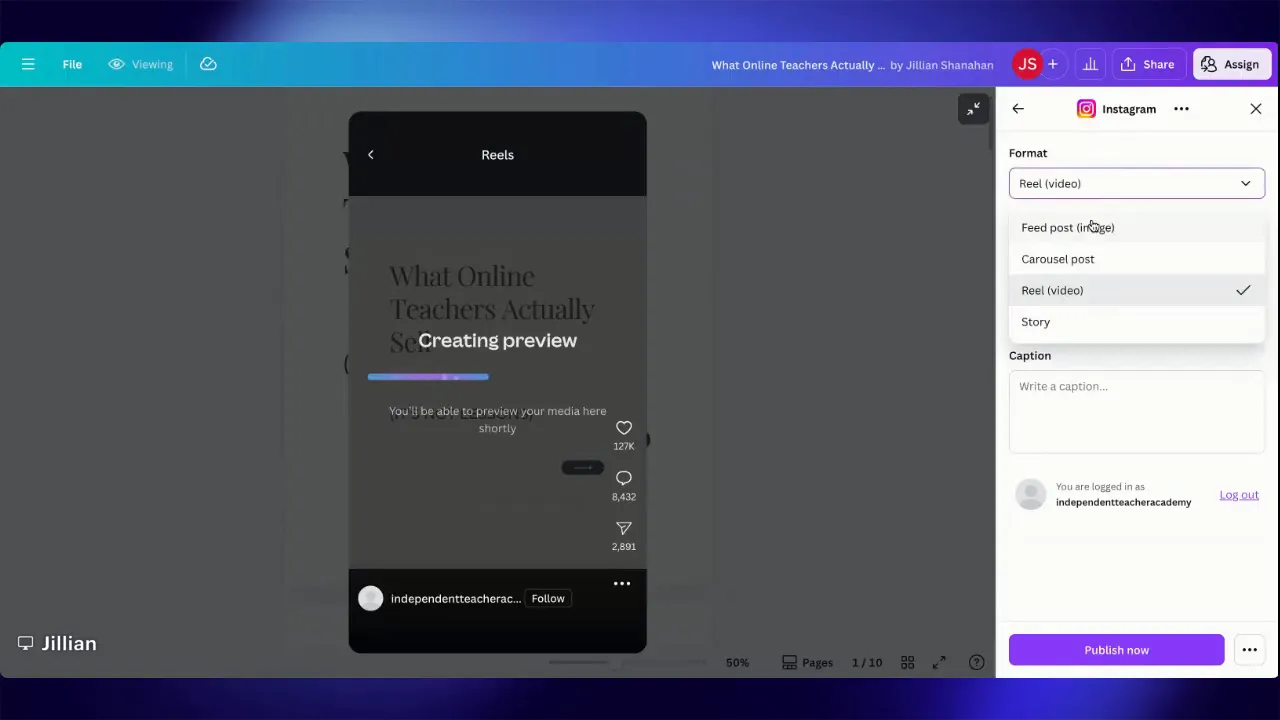
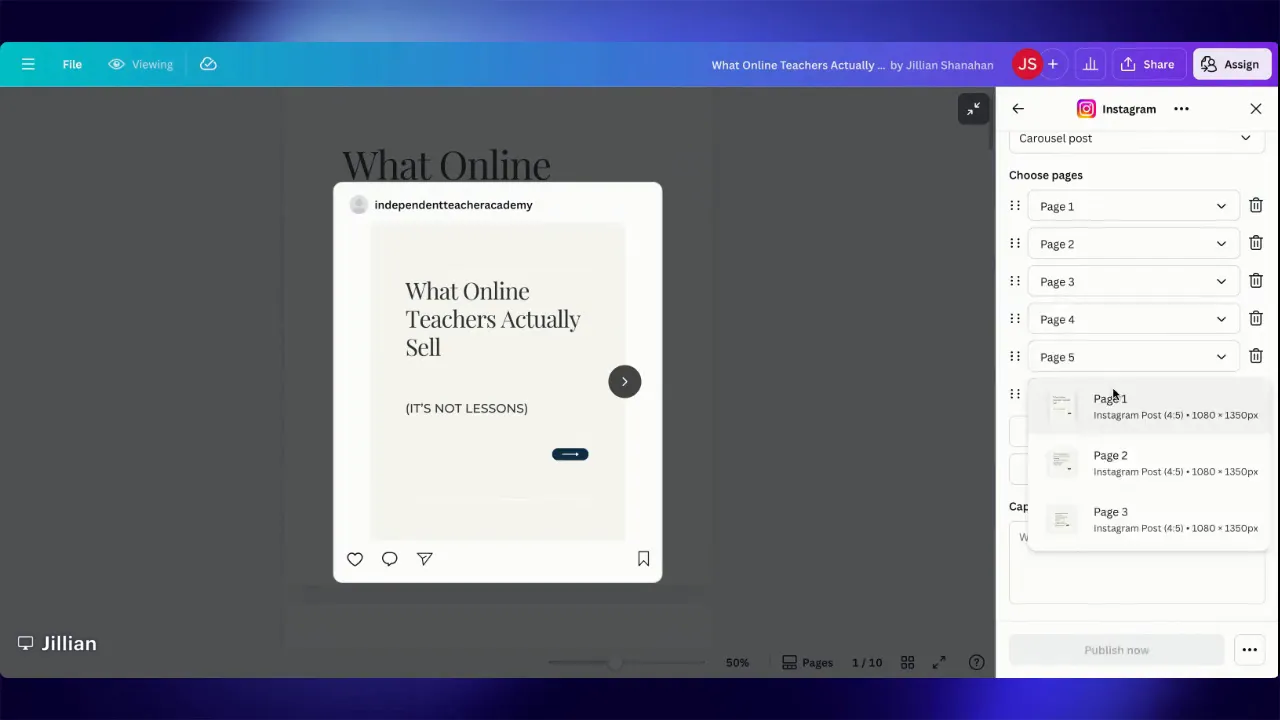
- Choose Carousel and select pages. Pick the Carousel option and then select each page you want included. If you have 10 slides, select pages 1 through 10. The order you select will be the order posted.
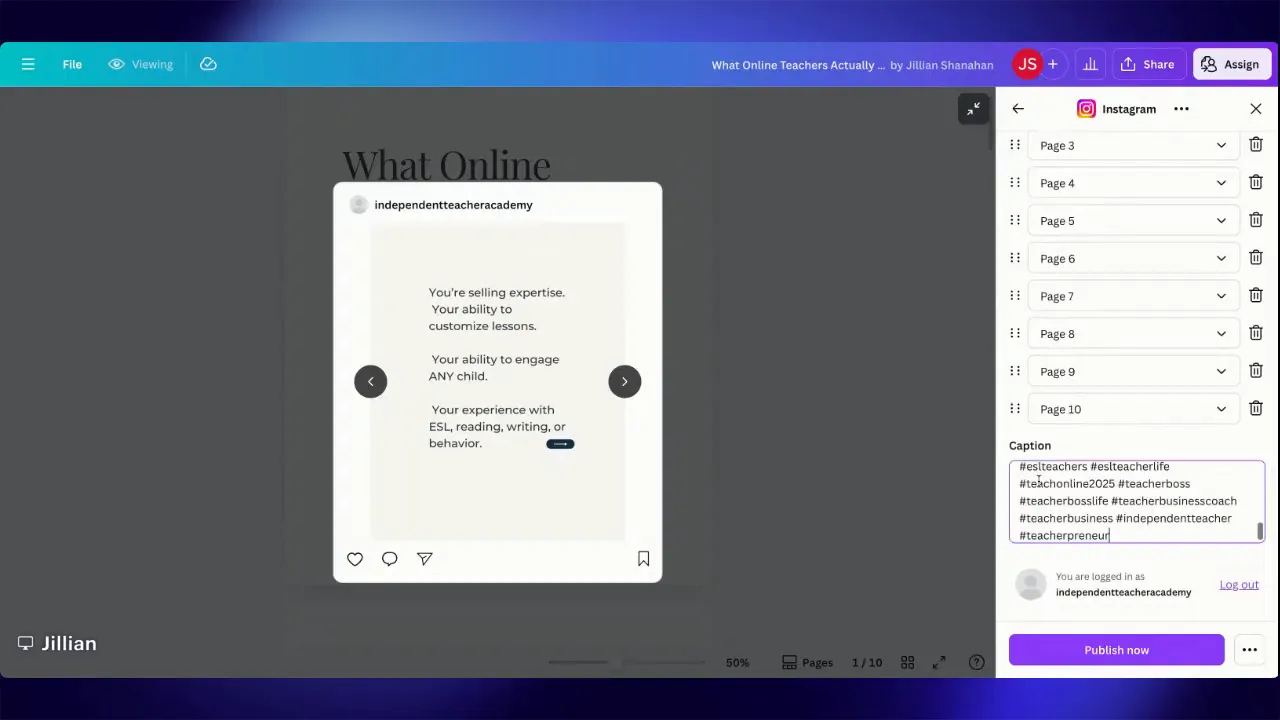
- Add your caption and hashtags. Type your caption directly into Canva’s caption field. Include hashtags and any clickable handles you want in the Instagram caption. This is the same caption users will see on Instagram when the carousel posts.
- Adjust your final call to action. Edit the caption CTA to boost engagement. A short, action-oriented CTA works best. Example: “Comment school and I’ll add you to our free school community for online teachers!”
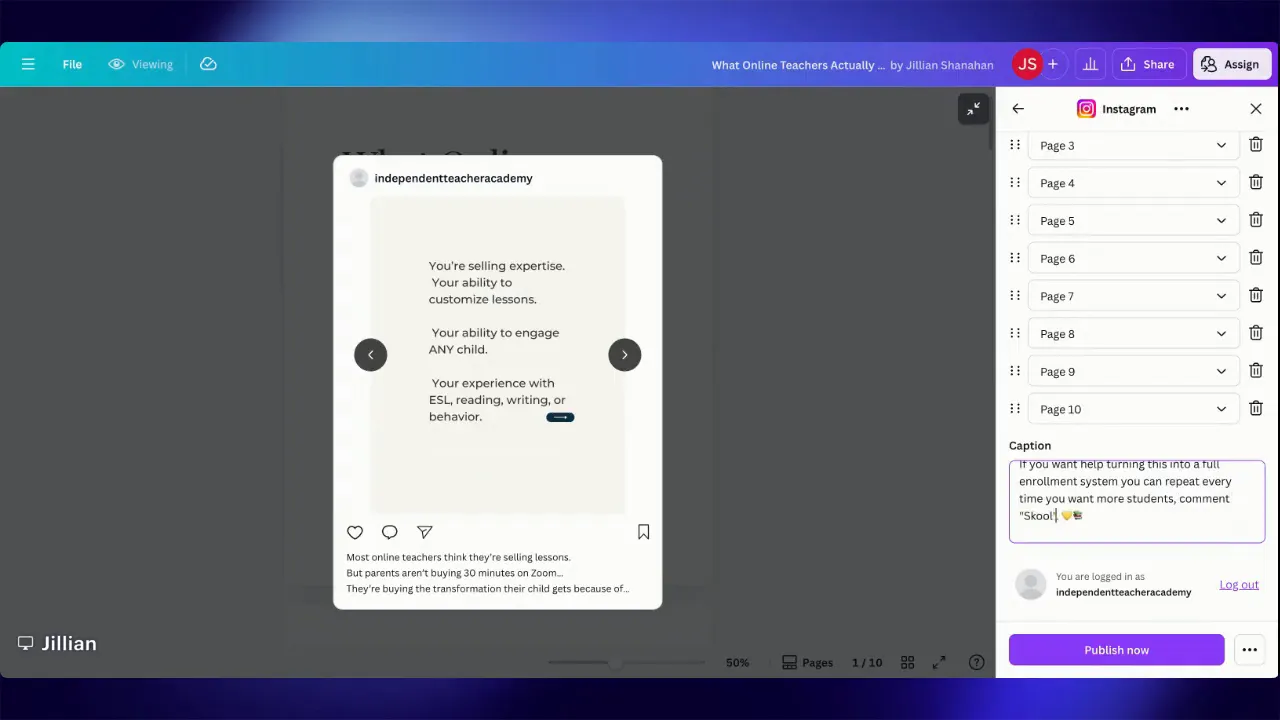
- Publish now or schedule for later. Choose to publish immediately or schedule a date and time. If you publish now, Canva will post directly to your Instagram. Note that sometimes the post can take a minute to appear in the app.
Important limitations and alternatives
- No automatic first comment in Canva. Canva does not currently support adding a first comment automatically. If you need that feature, consider Adobe Express which does offer automatic first comments.
- One destination at a time. Canva will post to one platform per publish action. Adobe Express can publish to multiple places at once if that is a priority.
Quick tips for better Instagram carousels
- Maintain visual continuity. Align elements across pages so the swipe looks like a single, connected experience.
- Keep text readable. Use large fonts and short sentences per slide.
- Order matters. Place the most important information in the first two slides to hook people scrolling their feed.
- Use a clear CTA. Tell readers exactly what to do next, for example: comment, follow, or click a link in your bio.
- Allow a buffer. If the post doesn’t appear immediately on Instagram, wait a minute and refresh the app.
Where to get more help
If you want to join a free community for online teachers to get support, resources, and requests for tutorial topics, check out the Skool community at:
Leave a Reply