Scheduling social media posts directly from Canva lets you create, schedule, and publish without downloading images or paying for another tool. If you already use Canva to design images, adding scheduling to your workflow transforms content creation into a true batch-and-forget system. Below is a clear, practical guide to set this up and start automating your visuals.
Why schedule from Canva?
Designing and publishing inside one platform saves time and reduces friction. Instead of saving files, switching apps, and uploading individually to each channel, you can do everything from Canva’s interface. This is especially useful for teachers, creators, and small business owners who want a simple way to keep a steady content stream running on autopilot.
Key benefits:
- Create and schedule in one place.
- Batch your content work—spend an hour and set weeks or months of posts.
- Avoid extra downloads, uploads, and third-party scheduler costs.
Quick overview: what works and what doesn’t
Scheduling from Canva works for static images. It does not support multi-image carousels. Keep that in mind when planning content that relies on multiple slides or complex posts.
Supported channel types
Canva connects to common social platforms (Pinterest, Facebook, Instagram, Twitter, and more). When first connecting a channel, Canva prompts for account access via a popup. Once connected, those channels appear as selectable options every time you schedule.
Step-by-step: schedule a post inside Canva
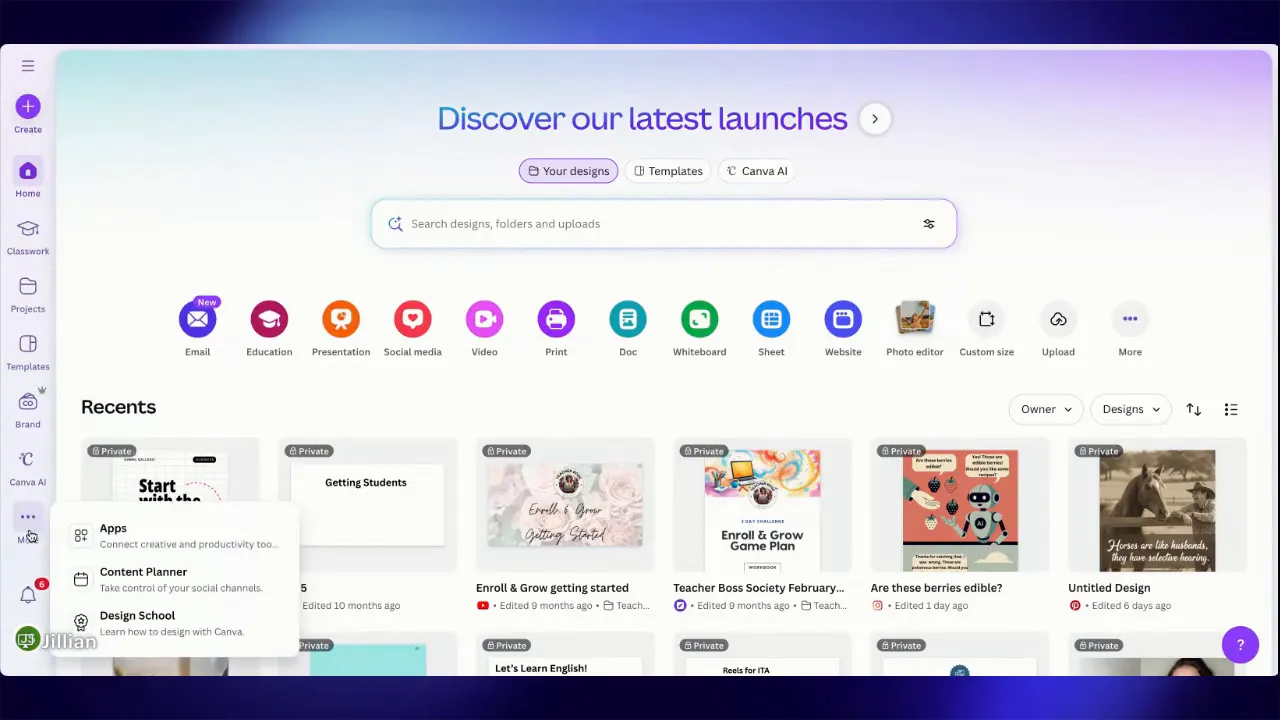
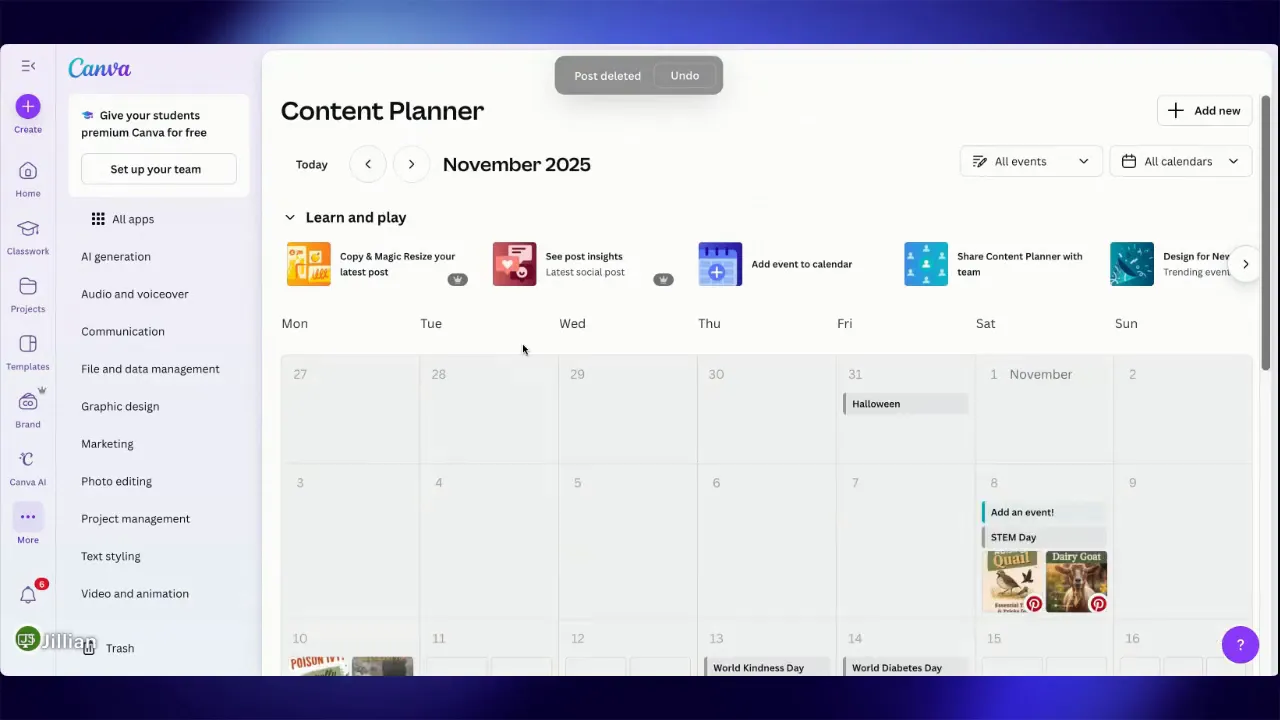
- Open the Content Planner — From Home, click More and then Content Planner to view scheduled posts and the calendar layout.
- Create or open a design — Use a template or start with a blank Instagram post (or another image-sized design).
- Edit the image — Make any visual edits you need. Remember this is for a single image post; carousels are not supported.
- Click Share and choose Social — Instead of downloading, click Share, then See all, and choose Social. This reveals where you can schedule.
- Click Schedule — Pick a date and time. You can plan far ahead and easily delete or change posts later.
- Select the channel — If the channel is not yet connected, follow the on-screen prompts to authorize and link the account or page.
- Write your caption — Add the post copy or hashtags, then hit Schedule.
- Confirm in the Content Planner — The post will appear on the calendar on the scheduled date; you can edit or delete it from there.
Workflow tips for batch creating
Batching allows you to plan content in concentrated blocks of time. Here are simple habits to make batching effective:
- Batch design sessions: Create a week or month’s worth of images in one session.
- Schedule as you finish each image: Don’t leave scheduling to the end. Schedule immediately so nothing gets lost.
- Use placeholders: If you want to test scheduling, pick a date far in the future (easy to find and delete later) while you get comfortable.
- Maintain a content calendar: Use the Content Planner to see posting cadence and avoid gaps or overlaps.
Common pitfalls and how to avoid them
Channel permissions: When connecting accounts, watch for popups and permission requests. Grant the necessary access so Canva can publish on your behalf.
Captions and platform differences: Some platforms handle captions and hashtags differently. Double-check formatted text and line breaks after scheduling a couple of test posts.
How this changes your content routine
Scheduling in Canva reduces the “publish” friction. Instead of reacting to daily posting tasks, plan an hour or two every couple of weeks to create and schedule. Then you can focus on other parts of your business knowing the posting engine is running in the background.
“It allows me to sit down, spend an hour every couple weeks or whatever, planning my content, posting my content, scheduling my content, and I can sit back and relax and do other things in my business because my business is still running for me.”
Final checklist before scheduling
- Design is finalized and sized correctly for the platform.
- Channel is connected and authorized in Canva.
- Caption and hashtags are ready and checked for formatting.
- Post date and time reflect the best engagement window for your audience.
Scheduling directly from Canva is a small change with a big payoff. Design, schedule, and publish in one place to keep social media consistent without burning time every day.
Want to see how to schedule carousels? Check out this post here.
Leave a Reply