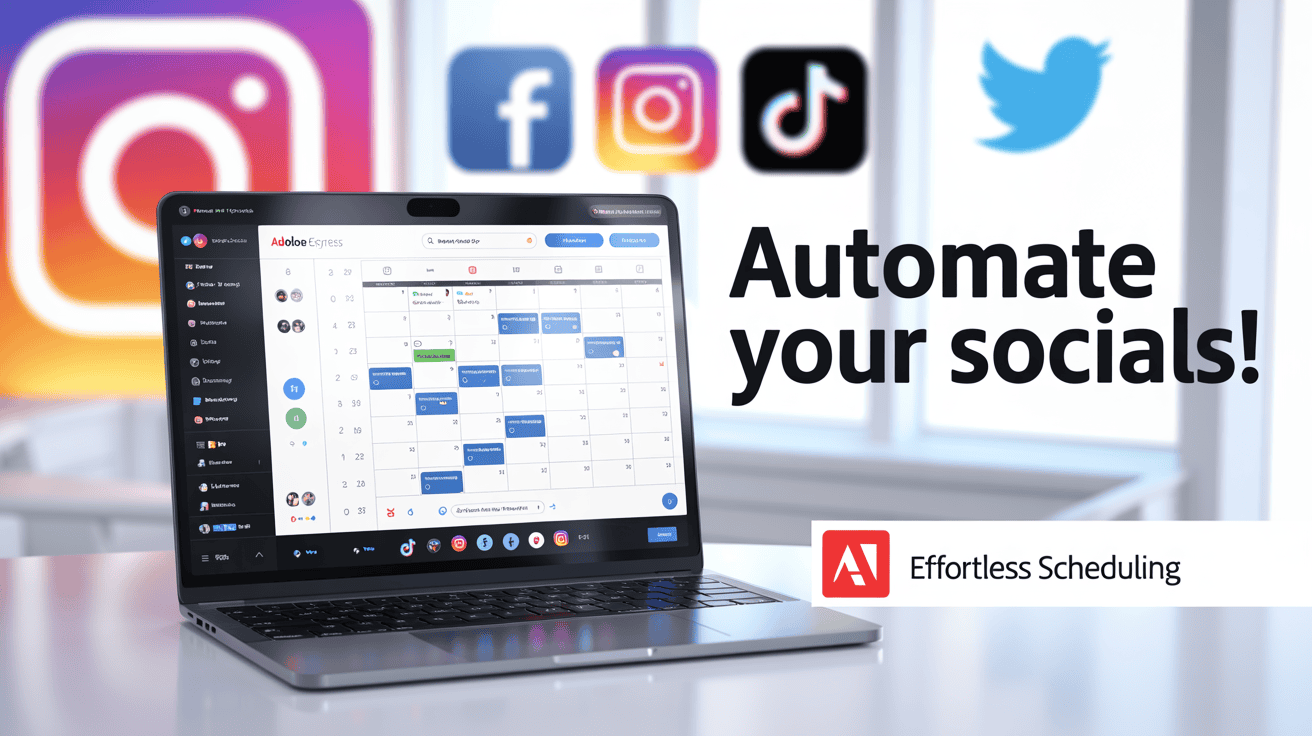
Not using Canva Pro? You can still create beautiful content and schedule it across social platforms using Adobe Express. It offers a familiar, drag-and-drop design experience plus built-in scheduling—often with cleaner post delivery than other tools. Below is a practical, step-by-step guide to designing an Instagram carousel and scheduling it to Instagram and Facebook using the free or paid versions of Adobe Express.
Updated for 2026: Adobe Express Free includes Content Scheduler, allows up to 1,000 scheduled posts per month, and lets you connect one account per supported social channel. If you are trying to post more consistently but are still stuck on what to create, start with 50 Teacher Content Ideas: What to Post When You Don’t Know What to Say.
Why use Adobe Express for scheduling
Adobe Express gives you template options for Instagram posts, stories, reels, TikTok, YouTube thumbnails, and more. The interface is similar to other design tools, so the learning curve is short. A few reasons to try it:
- Free access: You can sign up and start designing without a Pro account.
- Built-in scheduling: Create, queue, and publish posts directly from the platform.
- Multiple platform support: Connect Instagram, Facebook, Pinterest, and schedule to each.
- Better post consistency: Scheduling often results in posts appearing more reliably on social platforms.
Quick overview of the workflow
At a high level, the workflow looks like this:
- Create your design in the correct social media format (for example, Instagram carousel).
- Use the Share option and choose Schedule post.
- Connect your social accounts if you haven’t already.
- Select post type and upload all carousel slides in order.
- Add caption and optional first comment (hashtags or CTA).
- Schedule or publish immediately.
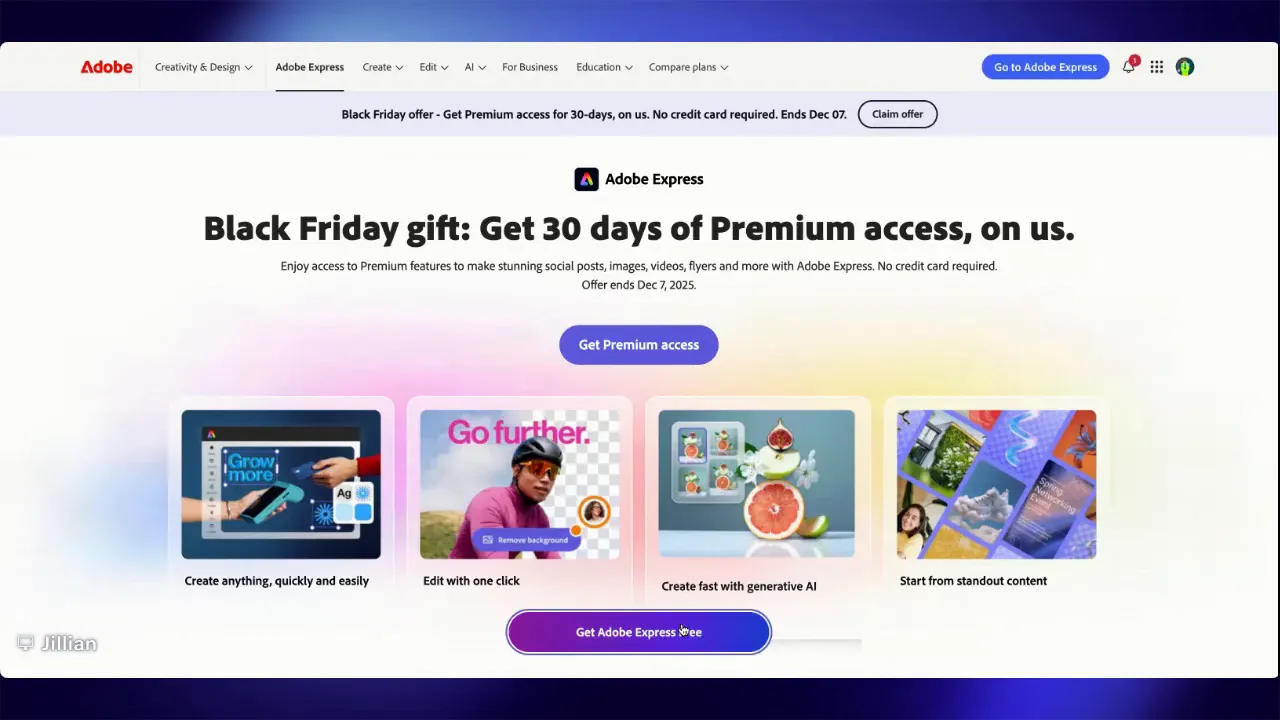
Step-by-step: Create and schedule an Instagram carousel
1. Start a new project in the right format
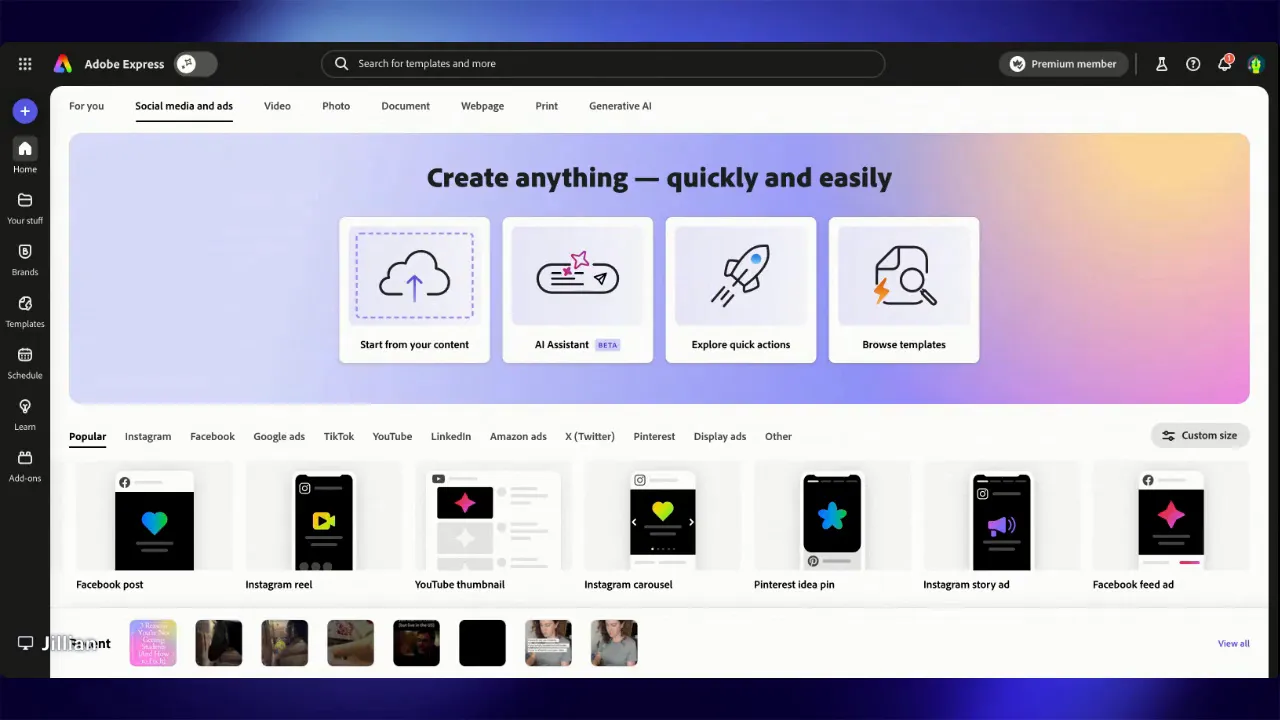
Open Adobe Express and choose a social media template. Options include Instagram post, story, reel, TikTok, and more. Pick Instagram post if you’re building a single-image post or a carousel of multiple posts.
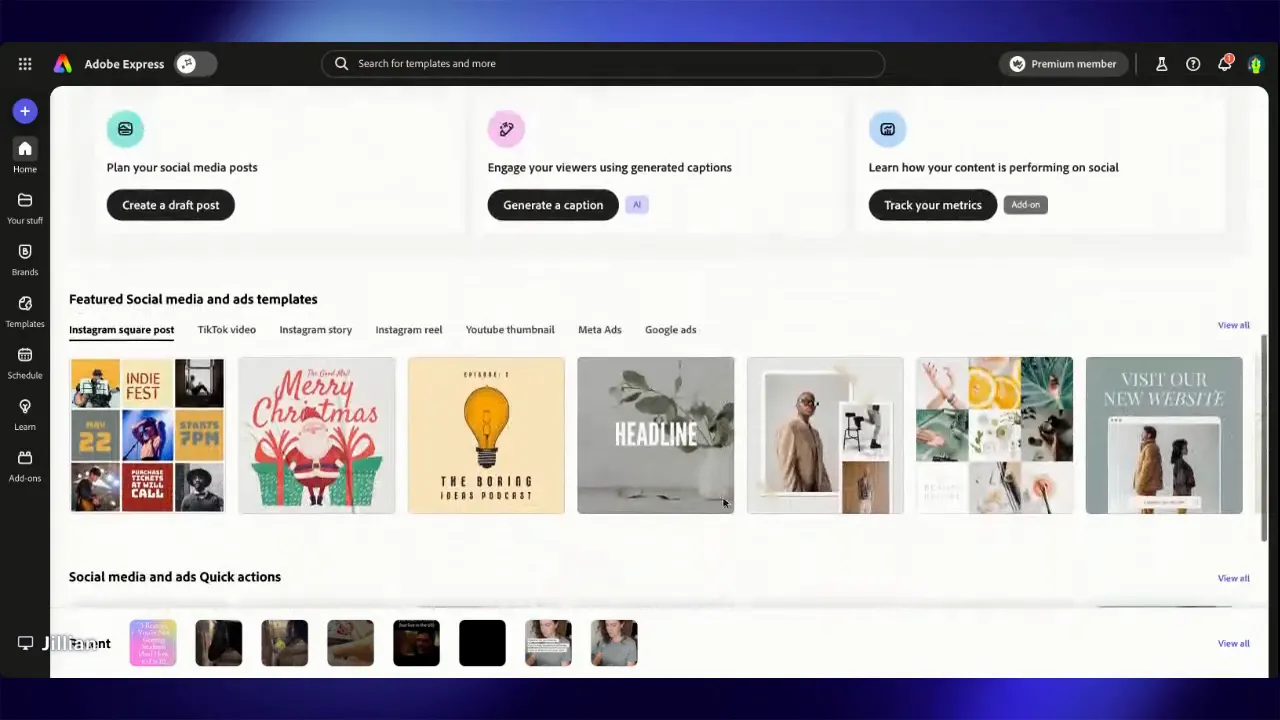
2. Design your carousel slides
Drag and drop images, text, icons, and shapes just like in other design apps. If you already have templates or designs, upload them and make quick edits. The interface will feel familiar if you’ve used other tools.
3. Use Share → Schedule post
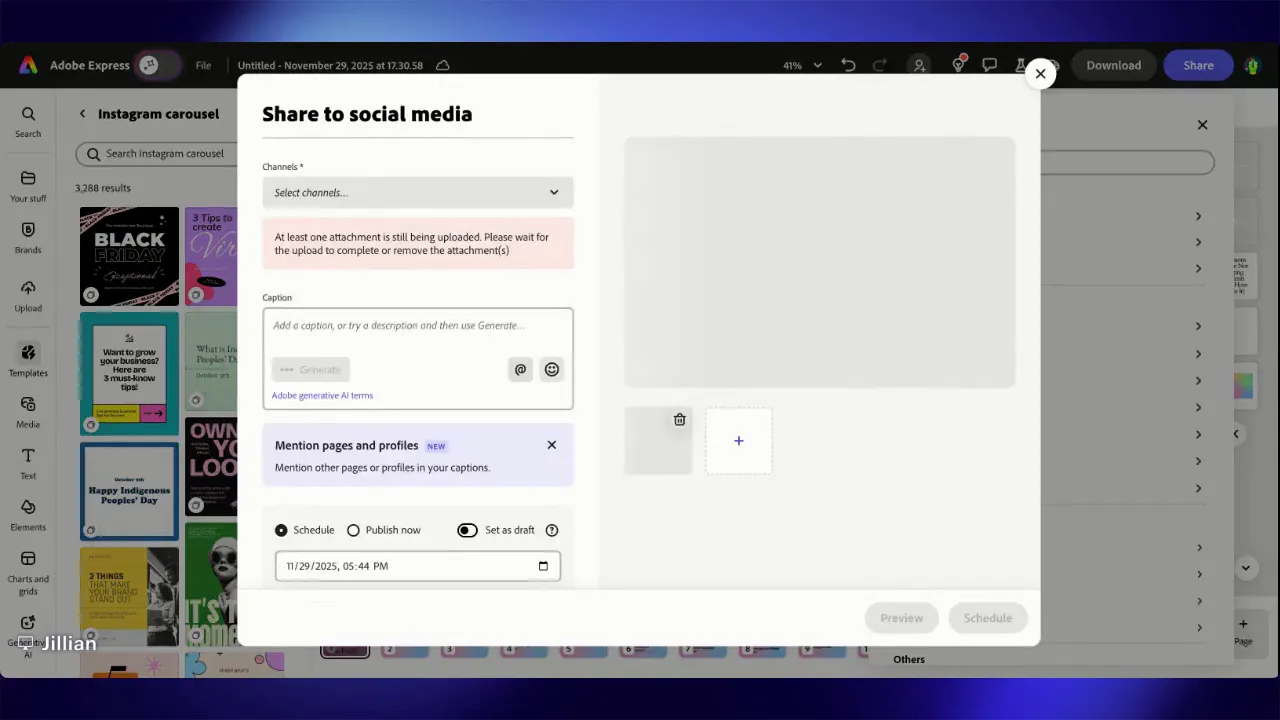
When your slides are ready, click Share and select Schedule my post. This opens the scheduling interface where you choose which social accounts to publish to and set post types (post, story, reel).
4. Connect social accounts (first-time setup)
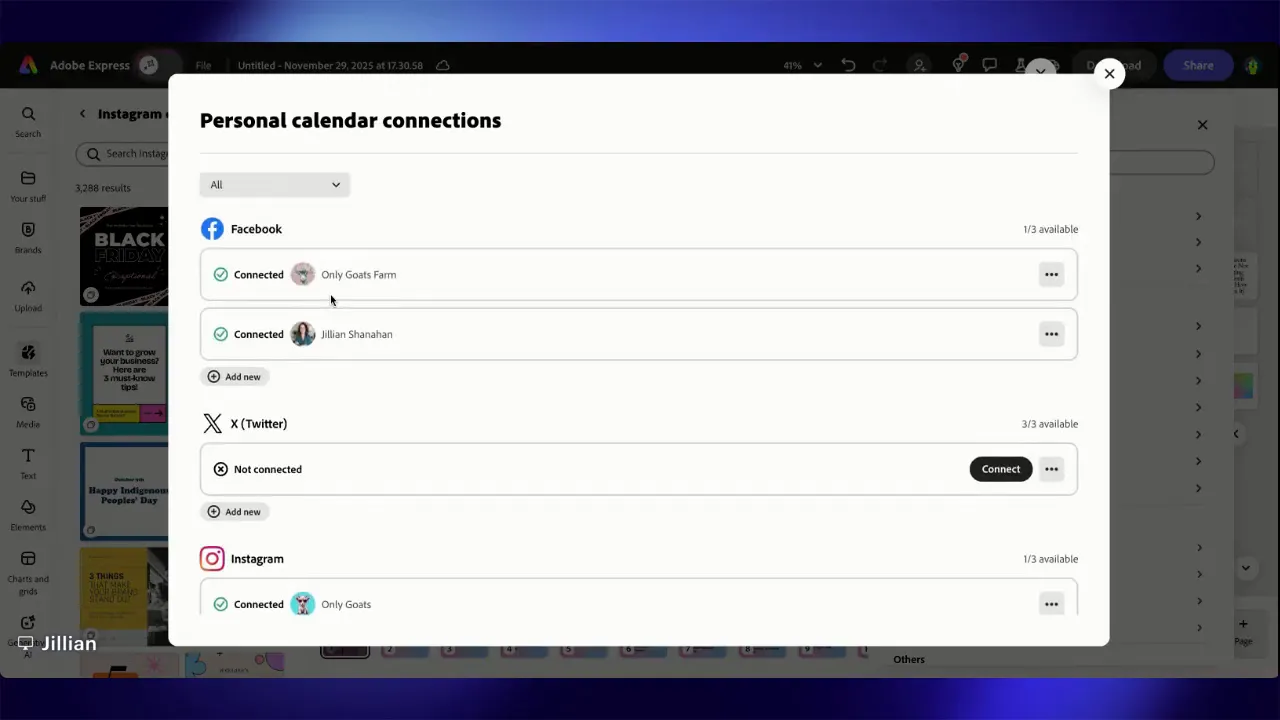
If this is your first time connecting accounts, go to Connect or Manage and authorize the platforms you want to use. As of 2026, Adobe Express Free lets you connect one account per social channel, while Premium supports up to three accounts per channel. Adobe currently supports Facebook, Instagram, X, Pinterest, LinkedIn, TikTok, and YouTube in Content Scheduler. You can check Adobe’s current Content Scheduler limits and supported channels here.
5. Upload all carousel slides in order
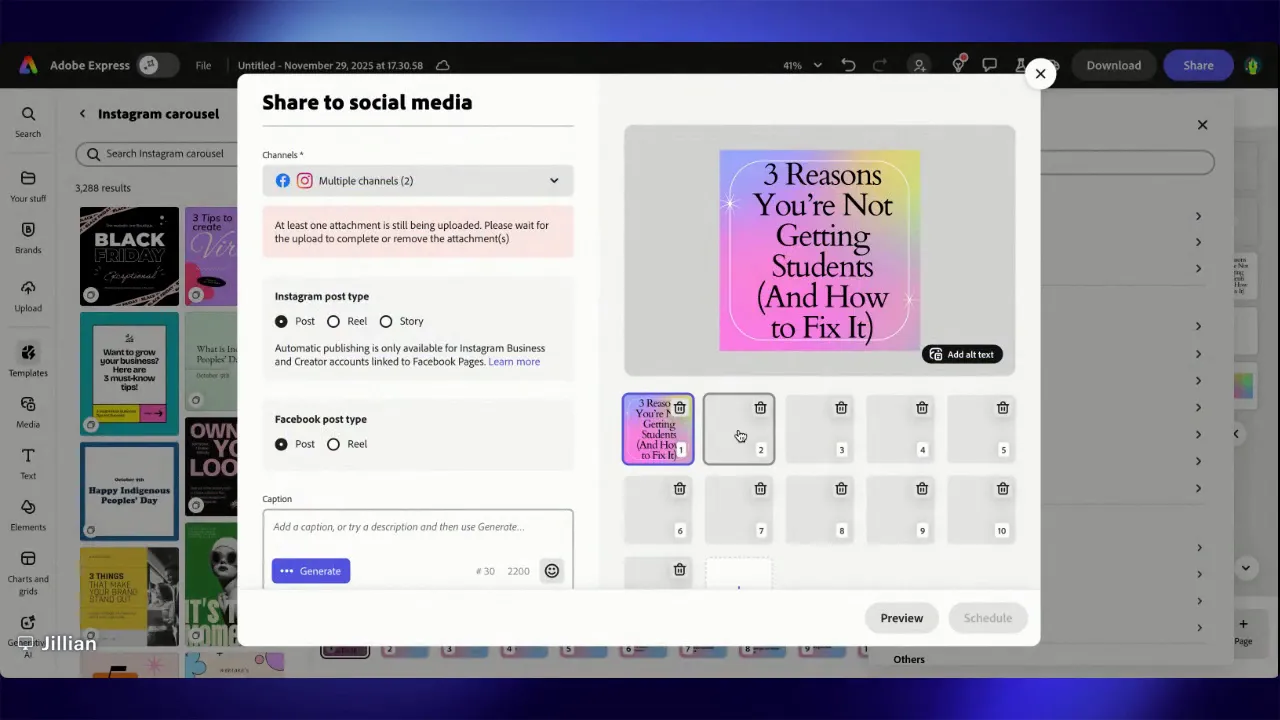
By default, adding a multi-image design may only post a single slide. Click the plus button, then add each carousel slide in sequence. After uploading, delete any duplicate first slide so the sequence is correct. The goal is to have every slide lined up in the proper order before publishing.
6. Add caption and optional first comment
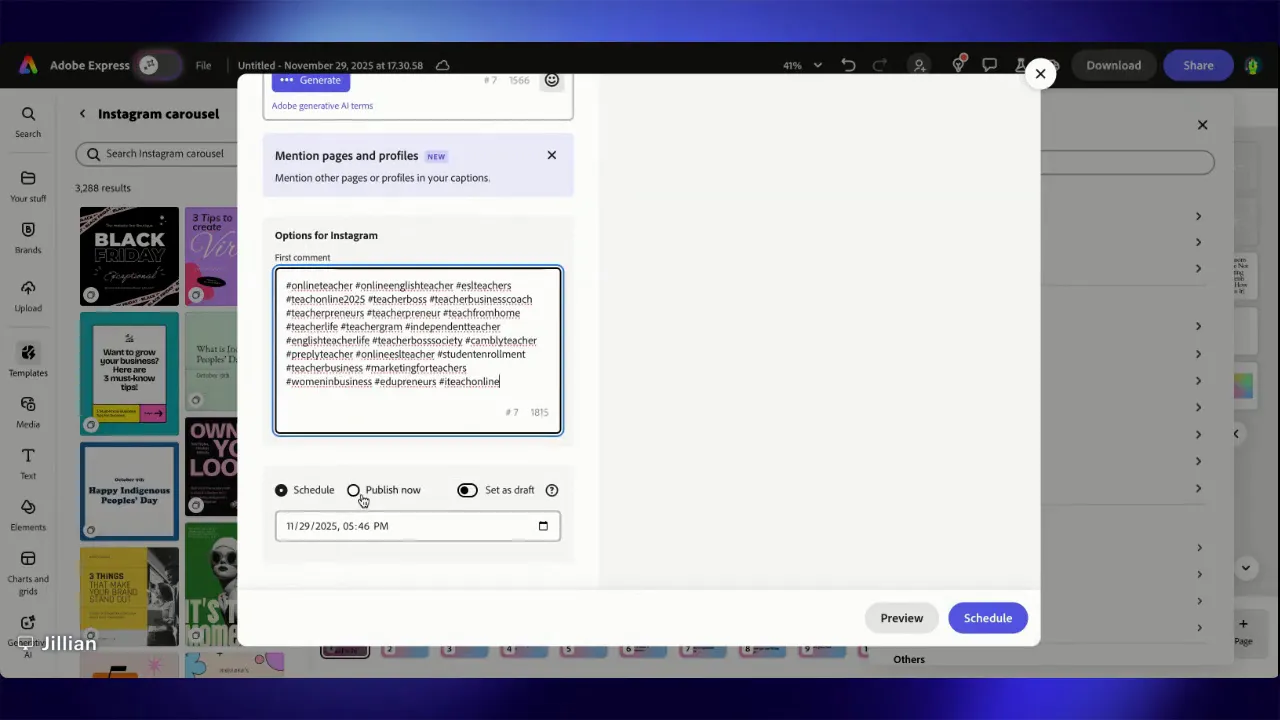
Enter your caption in the caption box. For Instagram, you can also schedule a first comment—ideal for placing hashtags or a short call to action. This keeps the caption clean while still getting the benefit of discoverability via hashtags.
7. Publish now or schedule for later
Choose to publish immediately or pick a future date and time. When ready, hit Publish or Schedule. Posts will be sent to the connected accounts on the selected date.
Pro tips and troubleshooting
- Account limits: Free tier connections are limited. If you need multiple accounts per platform, consider the paid plan.
- Confirm permissions: If a platform refuses to publish, check that the account authorization was completed and that the app has the correct permissions.
- Order matters: Always double-check carousel slide order after upload. The first uploaded image can sometimes duplicate—delete duplicates before finalizing.
- First comment for hashtags: Use the first comment field to stash hashtags or a short CTA without cluttering your main caption.
- Use consistent templates: Save templates for recurring post types to speed up production and maintain visual consistency.
Common use cases
- Teacher accounts: Schedule class announcements, student highlights, and curriculum previews ahead of time.
- Small businesses: Plan product launches, testimonials, and promotional carousels across Instagram and Facebook.
- Content creators: Batch-create reels and carousel content, then schedule to maintain a consistent posting cadence.
Final notes
Adobe Express is a practical option for teachers and creators who want a Canva-like design experience with scheduling built in. Personally, I still prefer designing in Canva, but I like the way Adobe Express handles scheduling and publishing. If your goal is to batch your content, streamline your visuals, and stay consistent without paying for Canva Pro just to schedule posts, Adobe Express is worth testing.
Quick reminder: Connect your accounts properly, upload carousel slides in order, and use the first comment feature to manage hashtags. Small setup steps save time and keep your content looking professional.
If you want to compare workflows, see How to Schedule Posts Straight From Canva. And if creating the graphics is what slows you down, read How to Use Canva AI to Speed Up Social Media Design.
Leave a Reply