

Scheduling posts on Xiaohongshu is a simple way to keep your account active even when you are busy. The process takes only a few taps: choose your image, edit, add your caption, then pick a time and date. Below is a clear, step-by-step guide that shows exactly what to do and a few quick tips to make scheduling reliable.
Quick overview
Here is the flow in one sentence: create your post, select the image from your album, edit the content, add a title and text, open advanced options, and set the scheduled publishing time (in Beijing time).
Step-by-step: schedule a post
- Create your post and select an image. Open the post composer and choose from your album. Tap the image you want to use, then hit next to move to the editing screen.
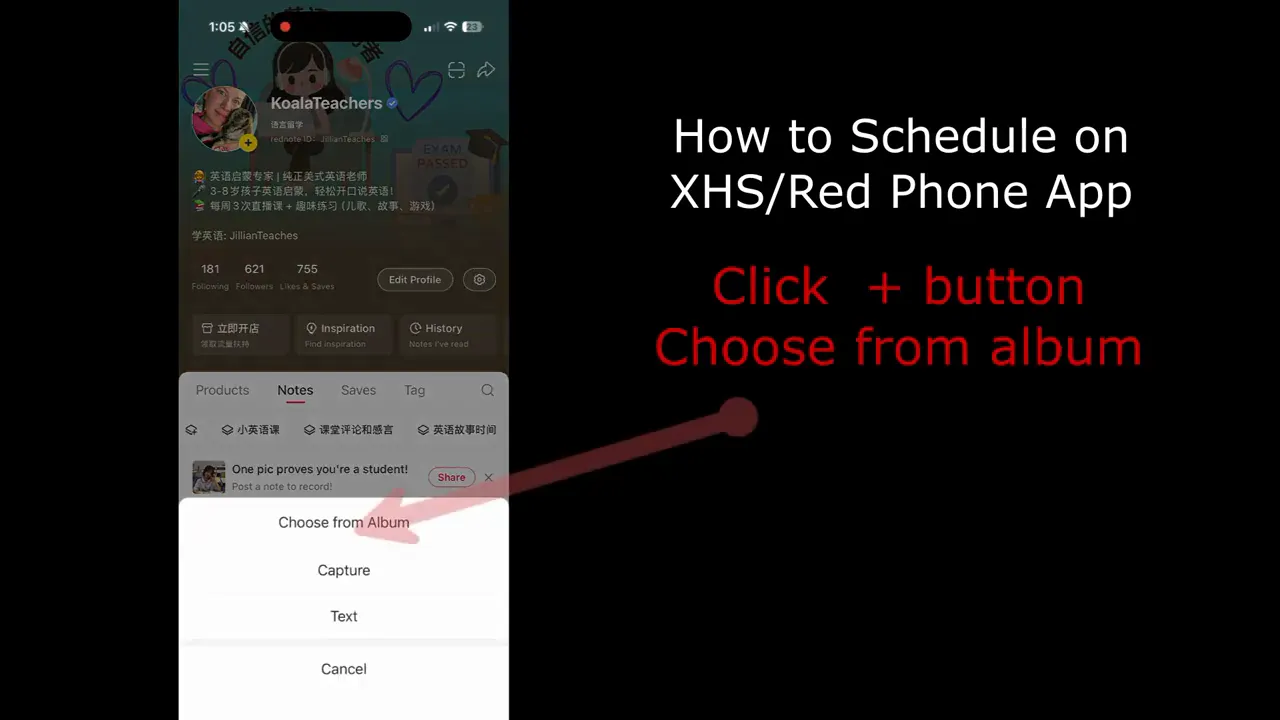
- Edit the image and click next. Make any edits or adjustments you like—filters, cropping, stickers—then tap next to proceed to the caption and title screen.
- Add a title and write your text. This is where you craft the post message. Short, personal notes work well—for example, “I miss you” if you haven’t been active for a while. Be clear and friendly in the caption.
 “I miss you because I have not been on Chinese social media all summer long.”
 - Finish the draft and open advanced options. Tap done once your caption and title are ready. Scroll down to find the advanced options where scheduling is located.
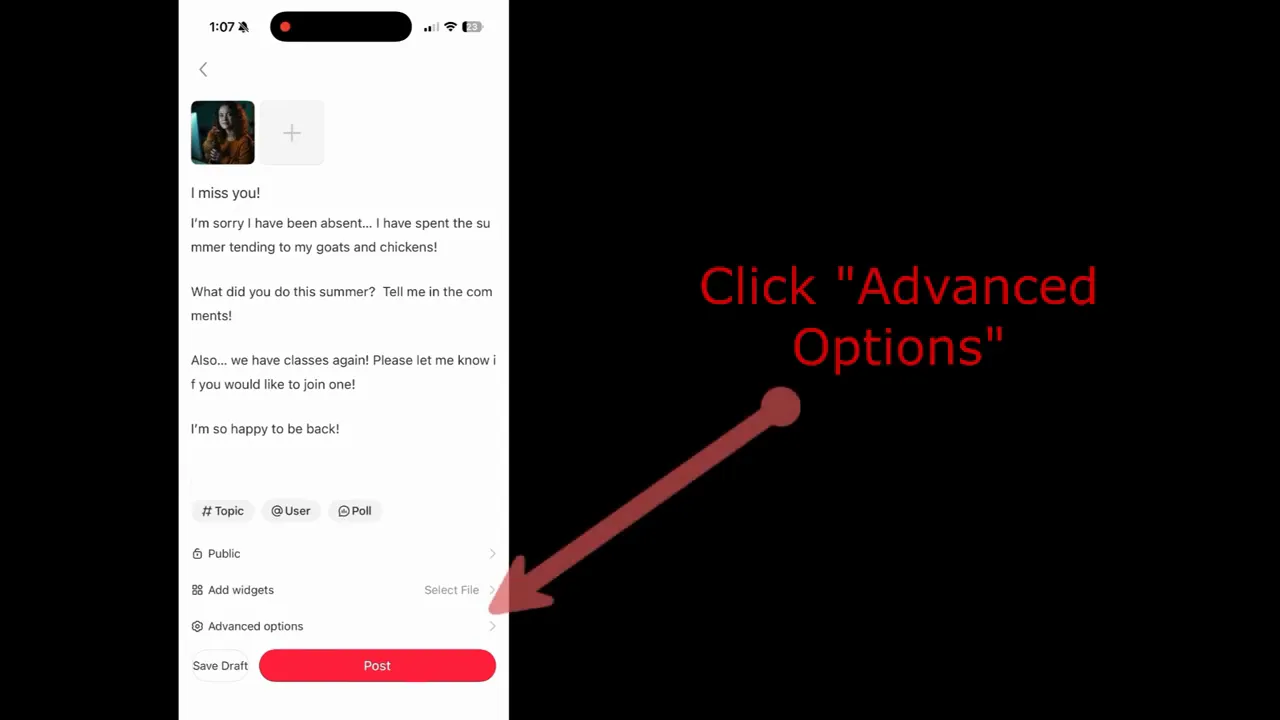
- Set scheduled publishing (Beijing time). Under advanced options, choose scheduled publishing. The schedule uses Beijing time, so select the date and time that fit your audience and plan.
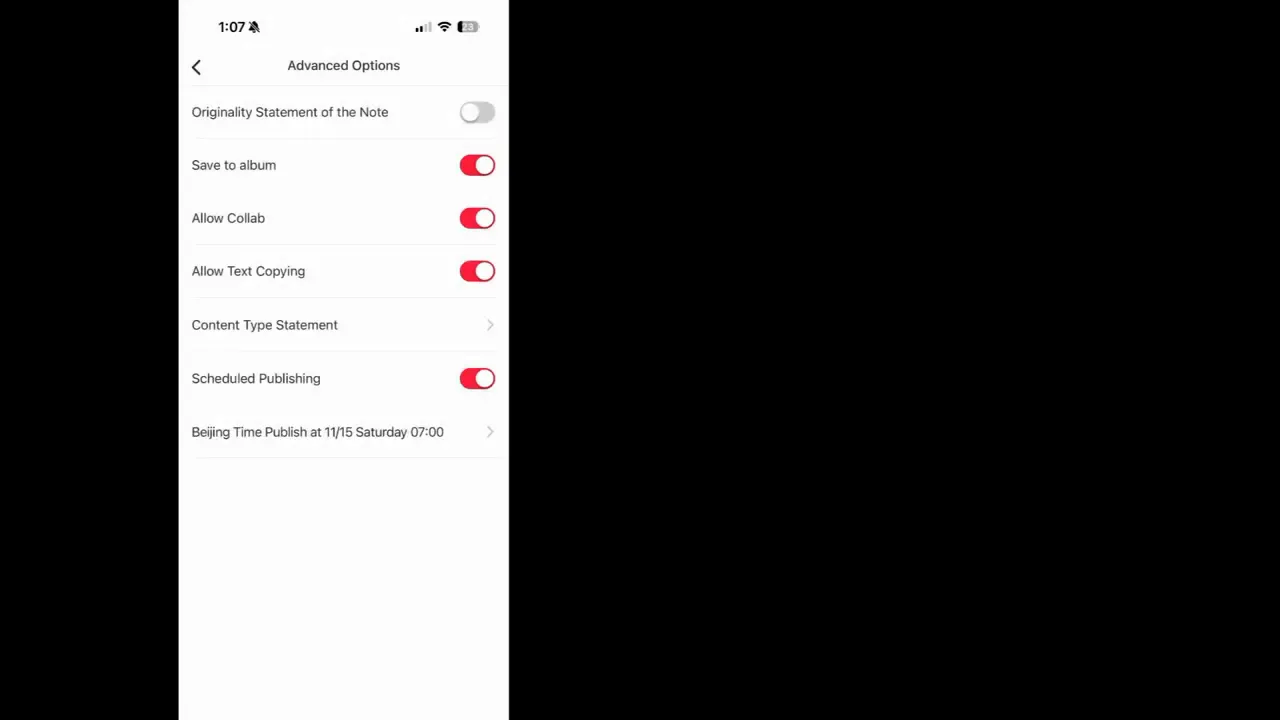
- Confirm and schedule release. After selecting the desired date and time, finalize by tapping to schedule the release. Your post will publish automatically at the set time.
Practical tips for reliable scheduling
- Remember the timezone: The scheduler uses Beijing time. Convert your local time so the post goes live when your audience is most active.
- Double-check captions: Once scheduled, review your title and text for typos or awkward phrasing before confirming.
- Use short, authentic messages: Personal, concise captions tend to perform well on Xiaohongshu.
- Plan ahead: Batch-create a few posts and schedule them across several days to maintain consistent presence without daily effort.
When to use scheduling
Scheduling is great when you have predictable downtime—travel, busy workdays, or holidays. It keeps engagement steady and signals reliability to followers without needing to be online every moment.
Final reminder
Set the time carefully, confirm the content, and let the scheduled publishing handle the rest. Scheduling saves time while keeping your feed active and professional.
Leave a Reply